Key capabilities
Backup and migration
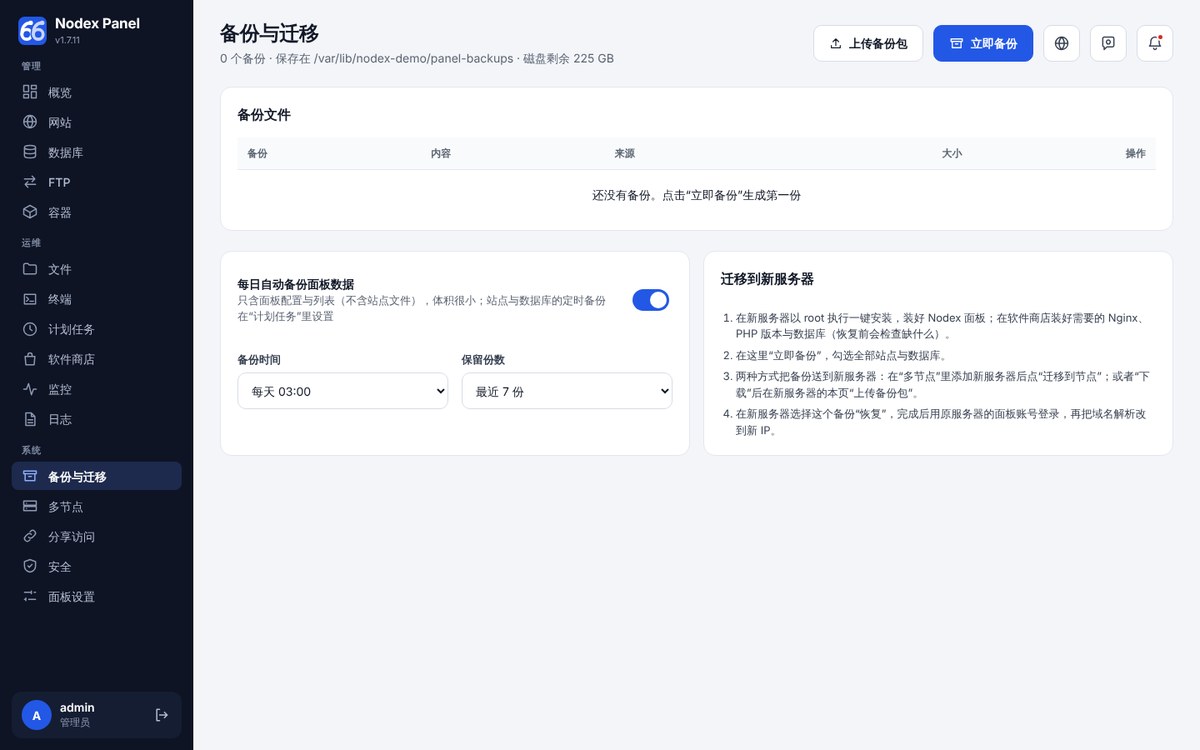
Back up website files, databases and panel data in one click, on a schedule to FTP, SFTP, S3 or WebDAV. When moving servers, both environments are compared first, then restored in one click.
One-click backup
Back up websites, databases and panel data separately or together in the background, with a notification when done.
Scheduled backups
Run daily, weekly or monthly, with old backups removed according to the retention count.
Remote storage
Copy to FTP / SFTP / S3 / WebDAV so your backups survive a server failure.
Encrypted backups
Backup archives can be encrypted, so a leaked file can't be read.
Environment check before migrating
Before restoring, the web server, PHP and database versions on both sides are compared and anything that needs separate handling is listed.
Node sync
With several servers, websites, certificates and files can be synced straight to another server.
Quick start
Get started in three steps
Nothing to preinstall: one command installs the panel, and everything after that happens in your browser.
- 1
Schedule backups
In Cron, choose the websites and databases to back up and how often.
- 2
Choose remote storage
Add FTP, SFTP, S3 or WebDAV and backups are uploaded when they finish.
- 3
Restore when needed
Restore from the backup list in one click; when moving servers, restore the archive on the new panel.
Installation
One command to install
Works on fresh or minimal installs of mainstream Linux distributions in about a minute; later upgrades happen automatically and roll back on failure.
command -v curl >/dev/null 2>&1 || { command -v apt-get >/dev/null 2>&1 && apt-get update -qq && apt-get install -y -qq curl ca-certificates || dnf install -y -q curl || yum install -y -q curl; }; d=$(mktemp -d) && curl -fsSL 'https://www.66panel.com/install.sh' -o "$d/install.sh" && bash "$d/install.sh"; s=$?; rm -rf "$d"; [ $s -eq 0 ]Will backups fill up the disk?
They don't grow forever: the oldest backups are removed automatically according to the retention count.
How do I move to a new server?
Install the panel on the new server and upload the backup to restore it; the runtime versions on both sides are compared first and the differences listed.
Can I restore a single database?
Yes. Every backup in a database's backup list can be downloaded, restored or deleted on its own.
Related features
Keep exploring
Database management
Everyday database work without typing SQL: databases, users, permissions, backups and imports on one page.
Learn more →Multi-server management
As your fleet grows, stop logging in to servers one by one: resources, alerts and actions come together in one place.
Learn more →Server hardening
No hardening manual required: the common attack surface is closed right after installation, and the rest are one-click switches.
Learn more →Try it on a server now
One command, about a minute; later upgrades happen automatically and roll back on failure.